
If you build data pipelines or analytic Python scripts, like dbt models, in Visual Studio Code (VS Code), you know the pain of context-switching just to sanity-check a column list or scan for NULLs. Traditional SQL clients are great, but bouncing between these database clients and VS Code can be distracting and break your flow when your focus is the code you’re writing on VS Code.
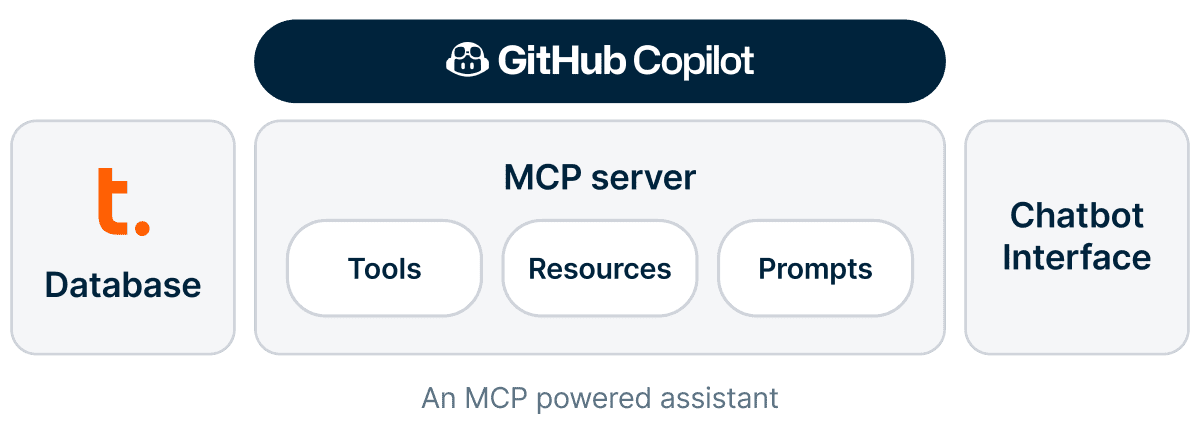
Teradata’s Model Context Protocol (MCP) server helps you by allowing GitHub Copilot Chat to talk to your data directly, providing a handy assistant for drafting analytics scripts.
Teradata MCP server is an open and extensible backend server that acts as a bridge between large language models (LLMs) and your Teradata environment, allowing you to query data, explore metadata, and even validate logic just by asking questions in plain English.
You stay in VS Code, GitHub Copilot routes data related requests to the MCP server, and results come back in the chat.
With this setup, GitHub Copilot can:
- Interpret your natural language questions
- Translate them into SQL queries behind the scenes
- Connect to your Teradata Vantage® instance
- Retrieve structured answers directly in your Copilot chat window
In this article, I’ll walk you through:
- How to set up your development environment to take advantage of Teradata MCP Server
- How to set up your own MCP server to work with GitHub Copilot Chat in VS Code
- How to query your Teradata database as if you’re having a conversation, simplifying chores like discovering tables, validating filters, and validating data quality in VS Code
Let’s begin the setup.
Requirements
- A free Teradata VantageCloud environment. Get one in just a few minutes via ClearScape Analytics® Experience.
- Visual Studio Code with the Copilot Chat and MCP-Client extensions. The download is available at https://code.visualstudio.com/.
- A Teradata MCP server. An open-source community edition is available in Teradata’s GitHub organization; later we’ll cover the details for cloning this repository and setting up the server.
Preparing the development environment
Log into ClearScape Analytics® Experience
- Sign up for a free account if you haven’t already, or log in.
- In the console, select “create new environment.” Take note of your host and password and the username and database, which will also be needed to set up your server later, default to demo_user in ClearScape Analytics® Experience.

Install uv
We utilize the uv package manager to run the Teradata MCP server in an isolated Python environment to avoid package conflicts and ease the setup.
- Install uv by following the steps at https://docs.astral.sh/uv/getting-started/installation/
- Verify if uv is properly installed, open your terminal, and run:
uv –v
This will display the installed version of uv. If you see any error, make sure you have followed the installation instructions and restart the console.
Setting up your own Teradata MCP server to work with GitHub Copilot in Visual Studio Code
Clone the Teradata MCP Server
git clone https://github.com/Teradata/teradata-mcp-server.git
Set environment variables
Create a .env file with the following structure:
DATABASE_URI= teradata://username:password@host:1025/databasename

LOGMECH=TD2  #TD2 or LDAP


MCP_TRANSPORT=stdio

PROFILE = dba
We’ll use the stdio transport method in this setup, though other methods are also available. Check the relevant documentation in the repository for details.
- Replace username, password, host, and database name with your own Teradata Vantage® credentials.
- The DATABASE_URI tells the server where to point your queries.
- Given the tasks we’re performing, we need a profile that enables the required tools. Specifically, set PROFILE=dba to access the required toolset.
Start the MCP Server
From your project directory (i.e., the folder where you cloned the teradata-mcp-server), test starting the MCP server using the following command.
uv run teradata-mcp-server
This boots up the MCP server to verify that everything is working as expected. If everything is in order, you can interrupt this run by pressing Ctrl + C.
Connecting the MCP server to GitHub Copilot in VS Code
Now let’s link this server to your GitHub Copilot:
- Open VS Code
- Press Ctrl + Shift + P to open the Command Palette
- Select MCP: Add Server
- Choose stdio as the transport type
- Fill in the dialog as follows:
- Command: “uv”
- ID: For example, “teradata-mcp-server"
- Then confirm and save now
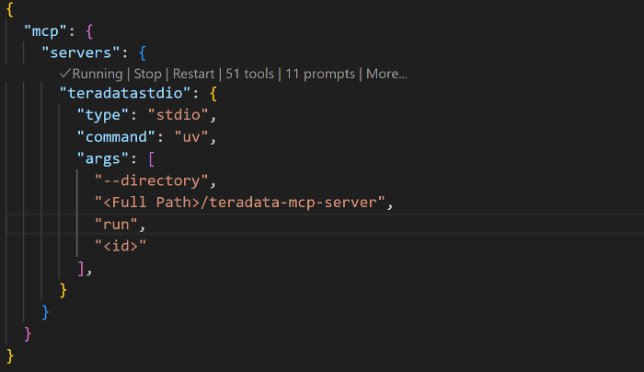
An mcp.json file will be created automatically. Complete the required arguments as shown below:
{


  "mcp": {


    "servers": {


      "teradatastdio": {


        "type": "stdio",


        "command": "uv",


        "args": [


          "--directory",


          "<Full Path>/teradata-mcp-server",


          "run",


          "teradata-mcp-server"


        ],


      }


    }


  }


}
Launch the MCP Server in VS Code
Once configured, start the server from within VS Code if it didn’t start itself:
- Friendly controls to start, restart, and stop the server overlay on top of the mcp.json file for convenient operation
Chat with your data
To interact with your Teradata database in natural language, you’ll need to use Copilot in Agent Mode, which allows GitHub Copilot Chat to talk directly to the MCP server.
Here’s how to do it.
Open GitHub Copilot Chat in VS Code
- In your sidebar, click on the GitHub Copilot Chat icon.
- If you don’t see it, open the Command Palette (Ctrl + Shift + P) and search for “GitHub Copilot: Open Chat View”
Switch to Agent Mode
- Go to the Copilot Chat panel in VS Studio
- Ensure it’s set to Agent Mode (not Chat Mode). If you don’t see this, go to command palette to enter Copilot: Toggle Agent Mode.
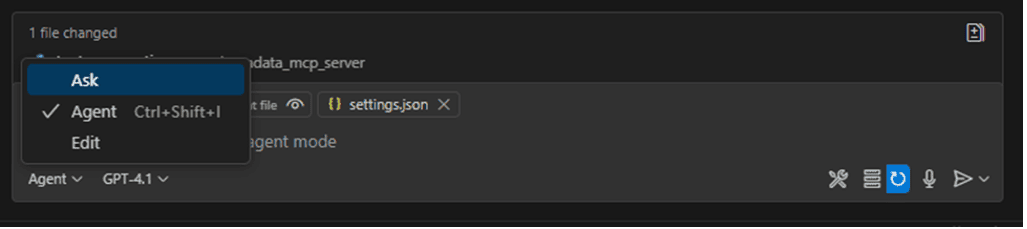
Once in Agent Mode, Copilot will be ready to route your questions through the MCP server to your Teradata backend and return results right inside your chat window.
Note on data: By default, our walkthrough defines demo_user as the default database. This database is empty in a new ClearScape Analytics® environment, you should load sample data first or update the database/table names in the examples to match tables that exist in your environment. This ensures you can explore and query your data.
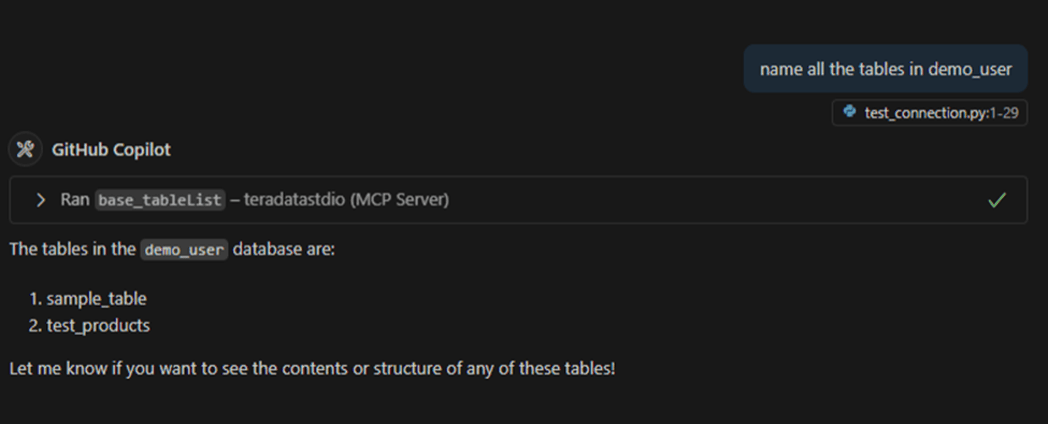
Try prompts like:
- “Show me the first 5 rows from demo_user.dim_customers”
- “What tables exist in the demo_user schema?”
- “Give me the total sales by region from demo_user.sales_fact”
- “Which columns are available in the demo_user.orders table?”
Conclusion
By combining Teradata’s MCP Server with GitHub Copilot Chat in Visual Studio Code, we unlock a powerful way to make data feel more conversational, accessible, and integrated into the daily developer workflow.
If you’re someone who works with Teradata and builds in VS Code, I highly recommend giving this workflow a try. Running the queries and getting results in the chat might boost your productivity.
Got questions or want to share your own use case? Feel free to reach out or leave a comment.